


Have you ever thought that one simple tool could change the way you work every day? Since 2013, Notion has been making our lives easier by keeping all our ideas, tasks, and notes in one cozy spot. Just imagine arranging your workspace so that every project, meeting, or to-do is always exactly where you need it, even when you're offline. In this post, we'll explore how Notion helps simplify your work with user-friendly templates, smooth syncing, and flexible pricing plans that fit both individuals and teams.
Notion App Overview: Features, Benefits, and Pricing
Notion began back in 2013 when Ivan Zhao and his team set out to create a digital space where everything comes together, from documents and wikis to your daily workflows. It’s like having a personal hub where you jot down ideas, plan projects, and track tasks, all synced across your phone, iPad, and computer. Imagine starting your day knowing every note and plan is right there with you!
The app works wonders across devices and even lets you work offline, so you never miss a beat, even when you’re off the grid. Its handy template library is a real lifesaver too, offering ready-made pages like to-do lists and meal planners that you can easily tweak. For example, you might swap out a generic placeholder with something like “Review new design concepts,” helping you keep your projects neat and focused without any extra hassle.
Notion offers both free and paid plans to fit different needs. The free personal plan gives you unlimited pages and basic block features, along with one guest, making it perfect if you’re just getting started. If you’re collaborating with a team, you can opt for a plan that costs $10 per user per month, which comes with extra perks like custom automations and bulk PDF exports. And if you need even more power, there’s an upgrade at $15 per user per month that unlocks advanced dashboards for richer data and deeper project insights.
Getting Started with Notion App: Installation and Initial Setup
Start by picking your device and installing the official Notion app. Once it's installed, open it on your computer, tablet, or phone for an easy start.
After you launch the app, sign up for a free account and choose the category that fits what you need. At first run, you'll see a sample workspace with ready-made templates. For example, click on a pre-loaded to-do item and change it to something like "Schedule team check-in" to see how the app adapts to your workflow.
- Choose your device (macOS, Windows, iOS, Android, or web)
- Download and install the official Notion app
- Create a free account and select the right category for your needs
- Explore the sample workspace and templates
Notion App: Boost Your Workflow
Notion makes note-taking feel like a natural conversation. When you type a forward slash, a menu pops up with a bunch of options, like adding text, headers, to-do lists, bullet points, dividers, and even quotes. It’s as if you’re building your ideas piece by piece, almost like snapping together easy puzzle parts. For example, try typing /text to quickly add a note like "Meeting at 3 PM" to your schedule. This simple command helps you shape your ideas, so even a quick note can later blossom into a detailed plan.
Notion also kicks things up a notch by offering advanced blocks that support rich media. You can easily insert tables to organize data into neat rows and columns, set up Kanban boards for a clear view of your tasks, and even add code blocks with syntax highlighting for your programming snippets. In plain terms, type /table to create a schedule in seconds and then switch to /kanban to track your progress visually. With options to embed images and more, Notion turns basic pages into lively, interactive workspaces, a perfect bridge between a digital notebook and a full-blown project planner.
At its core, Notion is all about customization. Its user dashboard lets you adjust and rearrange blocks with a simple drag-and-drop. Imagine moving a list to the front of your page or adding a fresh section for brainstorming, a few clicks, and it's done. With dark mode and themed templates that set the mood and offline options that sync once you’re back online, Notion feels both personal and efficient. It’s designed to boost your workflow while keeping things as flexible and fun as a chat with a friend about your next big idea.
Task & Project Management with Notion App

Start your day by setting up your plan in Notion. Use a simple task list and a calendar view to sort out your day. You can quickly make a list of what you need to do and switch it to a calendar so you see your whole week at once. For instance, type /list and then /calendar to set up your meetings or deadlines in a clear, visual way. This lets you tag tasks like "Email follow-up" or "Project review" so you can easily spot your top priorities without getting bogged down by too many details.
Next, build handy databases to keep track of everything you have going on. Notion gives you different views like tables, boards, calendars, galleries, and lists that let you organize your work in the way that suits you best. Every item in these databases opens up into its own page where you can add notes, set up filters, and even link it to other tasks. It’s pretty much like having a mini control center for each project, where you can see progress and group tasks by different categories. Imagine jotting down details for a task and then marking it as done with just one click, it makes planning feel both natural and organized.
Lastly, if you want to see your project timeline, switch over to board or gallery views. These modes give you a clear picture of milestones and progress. Notion even lets you drag tasks from one column to another, say, from "To Do" to "In Progress", so you and your team can see real-time updates. Picture moving a card titled "Draft Proposal" across your board as you get closer to finishing your goal. This hands-on approach makes it easier and more fun to plan and track everything at a glance.
Integrations and Automation in Notion App
Notion has built-in connectors, so you can easily sync with tools like Slack and GitHub. It’s designed to work smoothly with popular messaging channels and code repositories, letting you dive in without the fuss. For example, you can set it up to send updates straight to your Slack channel so everyone stays in the loop. And if you like a bit of coding, the API lets you customize how different systems chat with your workspace.
Beyond its own features, services like Zapier and Automate.io help you do even more. They let you hook Notion up to apps like Google Calendar or task managers such as Trello. Imagine adding a new event in your calendar and automatically getting a task created in Notion. With a few simple tweaks, your schedule and to-do list stay perfectly in sync without any extra work.
Notion also offers pre-made templates and the ability to write custom scripts, giving you greater control over your workflow. These templates help cut down on those repetitive tasks, so you can focus on what matters most. With custom scripts, you can automate regular chores like data refreshing or updating project statuses on their own. This setup not only saves you time but also keeps your cloud sync working reliably across all your devices, ensuring you always have the latest updates at your fingertips.
Best Practices and Tips for Notion App Users

Ever thought about turning your Notion pages into your very own digital library? It’s easier than you might imagine. Start by organizing your sidebar with mini pages that group similar topics together. This way, when you're looking for something specific, like all your project planning notes and tasks, you know exactly where to look. Just type "/tag" and label your stuff (like "Research" or "Urgent") so you can find it in a snap.
Right from the get-go, take advantage of Notion’s sample templates and custom layouts. There’s a pre-made page for meeting notes or task tracking that you can tweak to fit your vibe. Play around with drag-and-drop blocks to match your natural workflow. For example, you can update a calendar template with your own important dates and events, letting Notion handle the setup while you focus on what really matters.
Small tweaks to the interface and setting up daily habits can really boost your productivity. Try switching to dark mode during those long work sessions for a more relaxed view, or use focus mode to shut out distractions. Maybe even set up a quick "Daily Wrap-Up" note at the end of your day to keep things organized. These little changes not only polish your workspace but also help you build a routine that feels uniquely yours.
Collaborating in Notion App: Teams and Permissions
Inviting team members is really straightforward. You can easily add both regular folks and occasional guests to your workspace, giving each person a role that matches what they need to do. For example, a guest might only be allowed to view or make minor changes, while full members can add, edit, and rearrange content. This setup makes it clear who does what, which keeps everything organized and running smoothly.
Notion also brings a real-time feel to team projects. When several people work on a page at once, everyone sees updates instantly, along with handy inline comments and mentions that keep everyone in the loop. Picture this: you leave a note saying "Update this section," and your teammate replies right away. It’s like having a lively, digital conversation that makes working together feel natural and fun.
Keeping permissions in check is key for safe and organized teamwork. Notion lets you adjust permissions on every page or even throughout your entire workspace so that sensitive info stays secure yet is still available for those who need it. And if you're using a paid plan, the version history feature helps you track changes and even bring back old content if needed. This way, everyone stays coordinated and accountable.
Notion App Pricing Plans and Upgrade Options
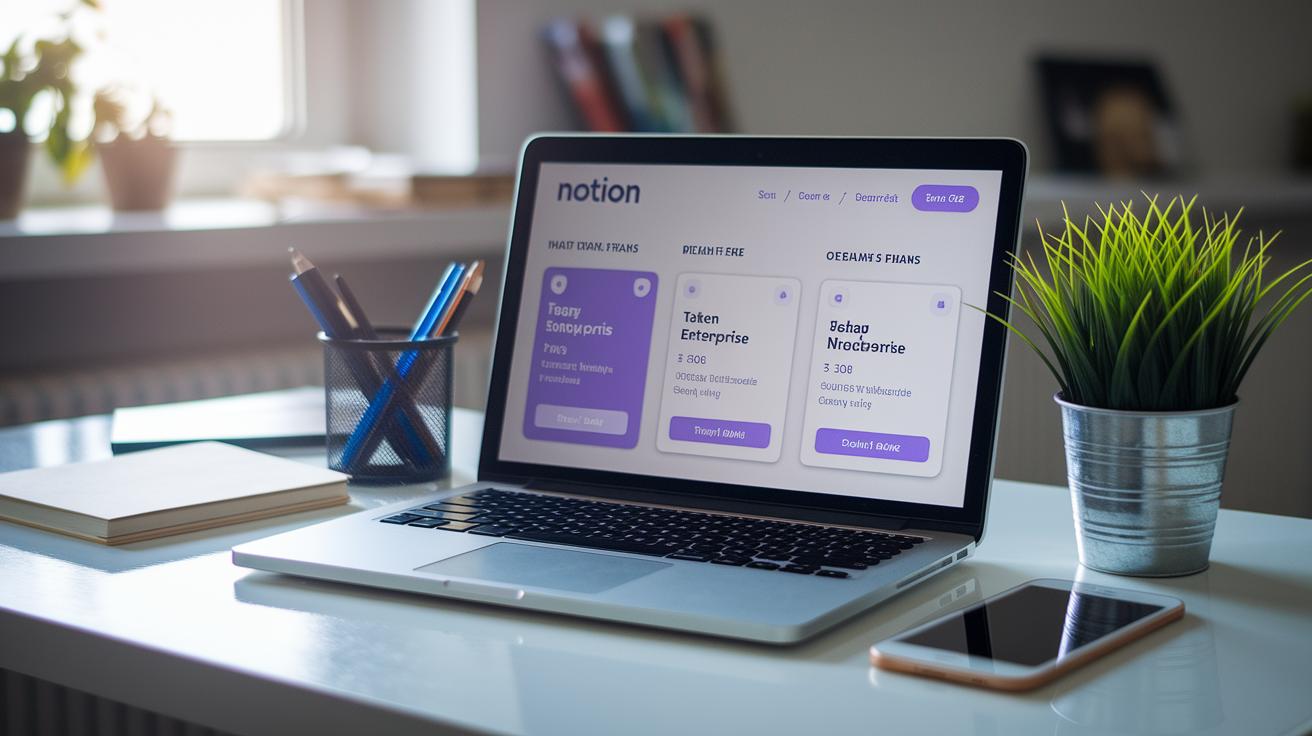
Notion offers simple pricing plans that work well whether you're flying solo or teaming up with others. They break it down clearly so you know exactly what you're getting, no fuss.
| Plan | Price | Key Features |
|---|---|---|
| Free | $0 | Unlimited pages/blocks, Three guests |
| Team | $10/user/month | Guest limits, Bulk PDF export, Admin tools |
| Enterprise | $15/user/month | Advanced permission controls, Dedicated support |
Students get neat perks with discounts and free trials so you can explore Notion's setup without any long-term pressure. And no need to worry, your data stays safe, locked down with encryption while it’s traveling and when it's stored.
Final Words
In the action, we traced how this innovative digital workspace guides you through work organization with clear features and intuitive steps. We covered everything from setting up on different devices to customizing dashboards, managing tasks, and syncing across platforms. We even highlighted how to integrate with external tools and collaborate smoothly with teams. Wrapping up with an eye on pricing and practical tips, the notion app keeps you organized and ready for more exciting tech insights. Enjoy the boost to your productivity and creativity!
FAQ
Download Notion app
The download process for the Notion app involves going to the official website or your device’s app store, selecting the appropriate version, and following the installation prompts for a secure setup.
Notion app free
The Notion app free version offers core features like unlimited pages and blocks, making it a great digital workspace solution for basic personal organization without any cost.
Download Notion app for Windows
The download for the Notion app on Windows is straightforward: visit the official site, choose the Windows client, and install it, ensuring you get a secure and compatible version.
Notion app store
The Notion app found in major app stores is regularly updated and optimized for mobile devices, providing a reliable way to manage your digital workspace on the go.
Notion app APK
The Notion app APK is the installation file for Android devices, and it’s best to download it from official sources or trusted app stores to maintain security and functionality.
Download Notion app for Mac
The process to download Notion for Mac involves accessing the official website, selecting the Mac version, and installing the app, which brings a seamless experience to your macOS environment.
Notion app reddit
The Notion app discussions on Reddit highlight user tips, troubleshooting advice, and customization tricks, offering a vibrant community space to learn and share experiences.
How to use Notion app
The guide on how to use the Notion app starts with setting up your workspace, exploring pre-loaded templates, and then customizing blocks to manage notes, tasks, and projects intuitively.
What is the Notion app used for?
The Notion app is used for creating a digital workspace that supports note-taking, task management, and project collaboration, helping users organize and streamline their daily routines.
Is Notion a free app?
The Notion app includes a free version with essential features for personal use, while enhanced plans with advanced functionalities cater to teams and more complex workflows.
Why are people leaving Notion?
The reasons behind leaving Notion typically relate to individual preferences for simpler interfaces, perceived limitations in advanced features, or exploring alternative productivity tools.
Is Notion overkill for personal use?
The suitability of Notion for personal use varies by need; while its robust features benefit users seeking extensive organization, others may find simpler tools more fitting for basic tasks.