

Have you ever thought about editing your photos as easily as snapping them? In this guide, we're checking out some of the best photo editor apps that add that extra spark to your pictures. They let you make quick fixes while also offering advanced options like raw tweaks (adjustments for unprocessed image data) and trendy filters. We’ll walk you through the top benefits and standout features that make it simple to turn everyday snaps into eye-catching art. Stick around to see which app vibes best with your creative style.
Top Photo Editor Apps at a Glance
Take a look at this hand-picked list of photo editor apps that mix easy-to-use tools with top-notch features. We’ve rounded up options that let you do quick fixes and dive into advanced editing like raw format tweaking (that means working with the original image data) or fine-tuning colors with precision.
These apps offer intuitive tools like a Healing Brush, HDR boosts, and simple swipe controls for fast adjustments. Plus, they come loaded with creative filters that give your photos a cool film-like or vintage look. Whether you're snapping quick pics or editing images for your portfolio, there's something here for everyone, whether you prefer free software or a pro-level experience on your phone.
Check out the table below for a quick summary, and tap the download links to explore the smart, dynamic features available on both iOS and Android.
| App Name | Platform (iOS/Android) | Price (Free/Premium) | Key Feature | Download Link |
|---|---|---|---|---|
| Adobe Lightroom Mobile | iOS/Android | Free/Premium | Raw editing and adaptive presets | Tap to download |
| Snapseed | iOS/Android | Free | Healing Brush, HDR, swipe adjustments | Tap to download |
| Google Photos | iOS/Android | Free | AI-powered search and creative filters | Tap to download |
| VSCO | iOS/Android | Premium | Film-like presets and social community | Tap to download |
| Afterlight | iOS/Android | Free/Premium | Creative film, vintage filters, and textures | Tap to download |
| Polarr | iOS/Android | Free/Premium | Tone curve, LUT support, raw file editing | Tap to download |
| PicsArt | iOS/Android | Free/Premium | Basic editing, stickers, templates | Tap to download |
Feature Comparison of Leading Photo Editor Apps
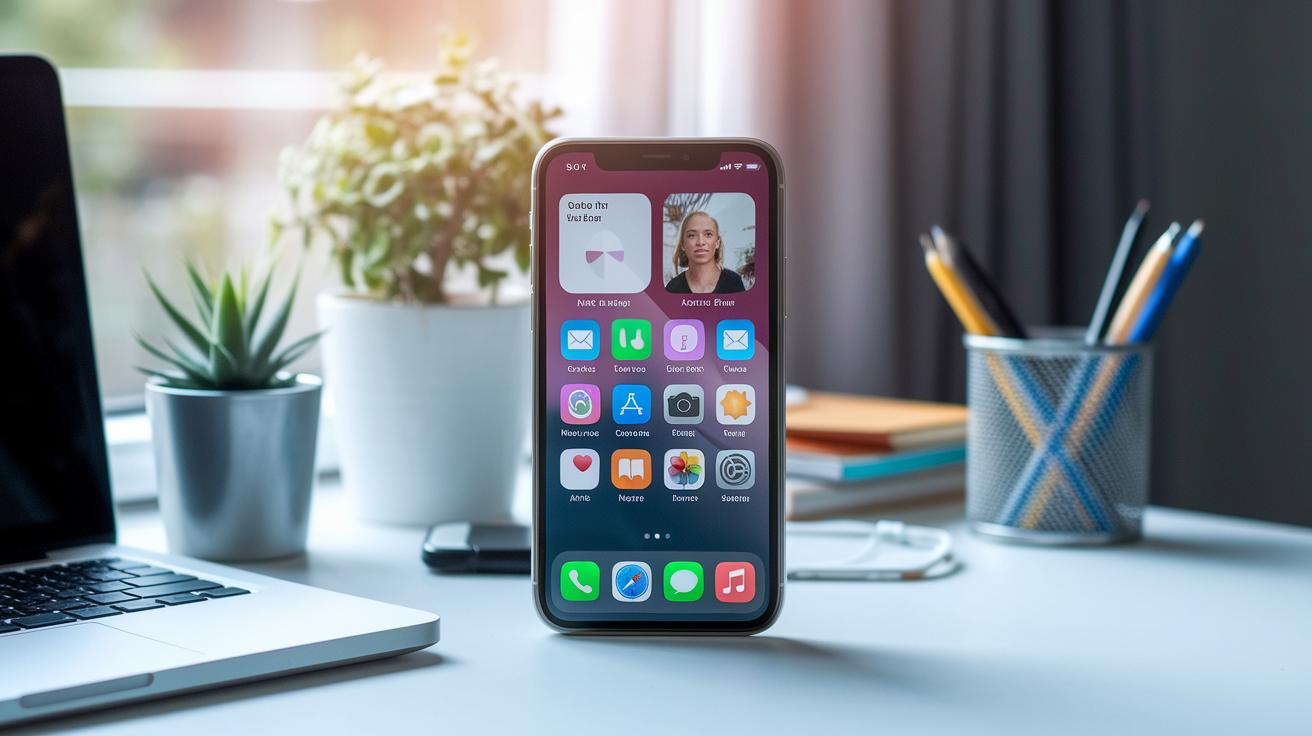
We've taken a close look at some of the best photo editing apps out there, focusing on the features that matter most when you're fixing up your pictures on the go. We checked out things like raw file editing (working with unprocessed images), AI cleanup tools (smart fixes), and how each app handles background removal or offers a wide range of filters. You'll be happy to know that most of these tools come with a free version so you can try them out before committing. For instance, while Lightroom Mobile shines in raw editing and syncing with your desktop, it doesn’t automatically remove backgrounds. On the other hand, Snapseed is really fun to use with its simple finger-swipe controls and HDR enhancements, keeping things straightforward. Take a peek at the table below to see how these popular apps compare in key areas.
| App | Raw Support | AI Cleanup | Background Removal | Filter Variety | Free Tier |
|---|---|---|---|---|---|
| Lightroom Mobile | Yes | None | No | Adaptive Presets | Yes |
| Snapseed | No | Basic Adjustments | No | Creative Filters & HDR | Yes |
| Google Photos | No | Inbuilt AI Tools | No | Dynamic Filters | Yes |
| VSCO | No | Limited | No | Film-style Presets | Limited |
| Polarr | Yes | None | No | Extensive Tools (LUT, Tone) | Freemium |
Pricing Plans for Popular Photo Editor Apps
Photoroom lets you remove backgrounds and export in batches for just $7.50 a month. VSCO offers a yearly plan at $19.99 that gives you all the film presets and extra editing tools. Afterlight has a free basic version, but you can upgrade to access a full pack of filters and textures for $2.99 a month or $19.99 a year.
Polarr runs on a freemium model, meaning you can start for free and upgrade to a premium version for $3.99 a month. This premium option brings you advanced filters, batch export options, and other neat editing features. PicsArt also begins as free with essential tools, but if you want access to everything, the full subscription comes to about $4.66 per month when billed annually.
Both Snapseed and Google Photos provide a completely free experience with all the core editing tools you need.
When you’re picking a photo editor app, think about what you really want. If you love having every detail to tweak perfect, a subscription might be worth it. But if you’re happy with solid basic editing and want to save money, free options like Snapseed and Google Photos are great. Compare the cost with the features and choose the plan that fits your creative routine and budget.
How to Choose the Best Photo Editor App
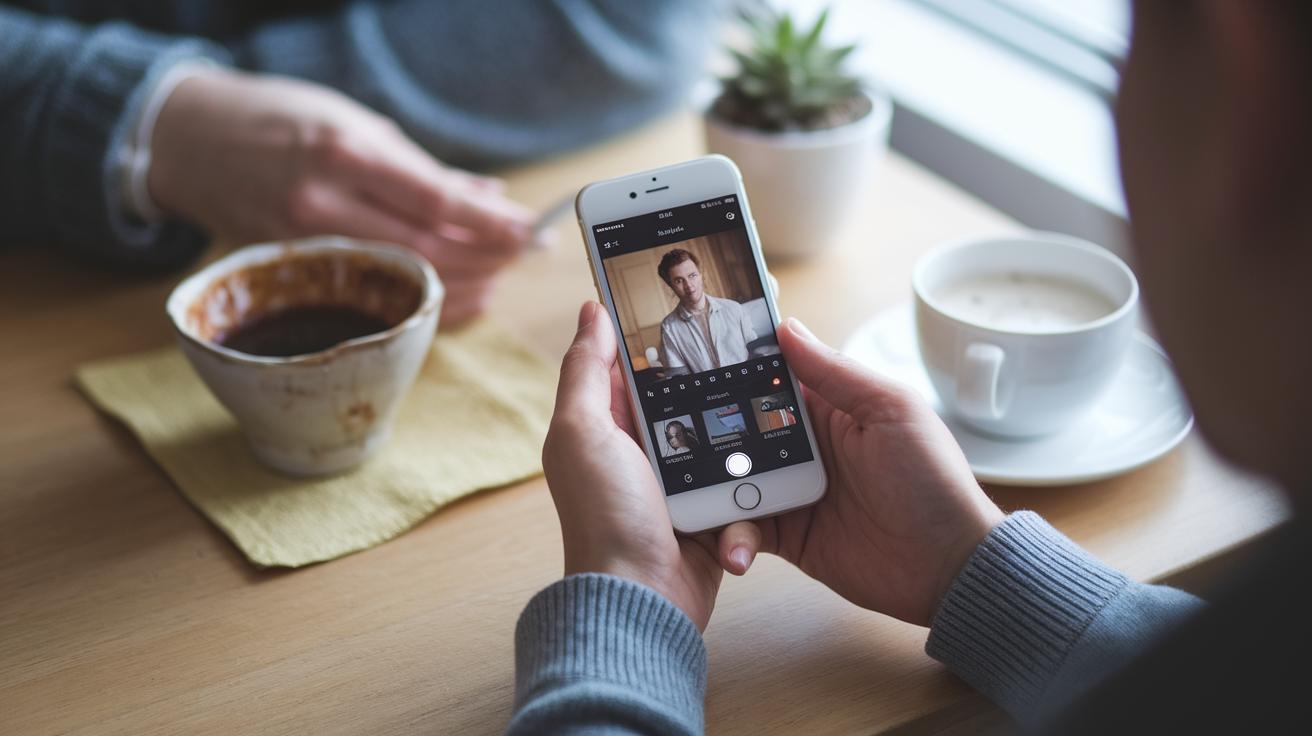
When picking a photo editor app, it helps to think about what suits your style and daily needs. Maybe you need an app that's super easy to use for quick edits, or one that offers creative filters if you love trying new looks.
- Platform Compatibility: Make sure the app runs well on your device. For example, Snapseed works smoothly on both iOS and Android, which is handy for everyday photo tweaks.
- Feature Depth: Look at the range of tools available. Lightroom offers adaptive presets and syncs with your desktop, making it great for photographers tackling RAW images (high-quality image files).
- Ease of Use: A simple, intuitive interface can save you time. Snapseed’s design lets you adjust your photos quickly without any fuss.
- Performance and Speed: Quick editing is key, especially if you have lots of photos. Google Photos uses smart, AI-driven tools to search and enhance your images, speeding up your workflow.
- Community/Shared Assets: Some apps let you share your work and pick up tips from others. VSCO, with its film presets, is perfect if you enjoy creative exchanges.
- Cost/Freemium Balance: Think about what fits your budget. Many apps offer solid free features with options to upgrade, Polarr, for example, gives you robust manual controls that you can expand on later.
At the end of the day, the best photo editor is the one that gels with how you like to work. Enjoy exploring and finding the one that feels just right for you!
Installation and First-Time Setup of Your Photo Editor App
Starting up your new photo editing app is simple and fun. In just a few steps, you'll be ready to start creating memories with your photos.
-
First, go to the iOS App Store or Google Play and find the editor you like best. You can choose apps like Snapseed, Lightroom, VSCO, or Google Photos.
-
When you open the app for the first time, it will ask for some permissions. Let the app access your camera, storage, and microphone. This lets you take pictures, create collages, and use smart tools to crop and resize your images.
-
Next, set up your backup preferences. For example, Google Photos might suggest ways to save your images while keeping your storage neat. This keeps your photos safe without you having to think twice.
-
Then, take a look at the tutorial walkthrough. It will guide you through the basic tools, like auto-enhancement for your digital images. Think of it as a quick guide to help you master simple editing tricks.
-
Finally, you might need to create an account. This step saves your edits, syncs your settings, and gives you access to special, personalized features.
If you need extra help, check out the in-app help section or community tutorials. They’re great for learning new tricks and boosting your photo editing skills.
FAQs for Choosing and Using a Photo Editor App

-
Q: What's the top free photo editor for your everyday tweaks?
A: Snapseed is a solid pick, it packs a wide range of easy-to-use tools and doesn’t cost a dime. -
Q: Which app should you choose for professional-level RAW editing?
A: Lightroom Mobile is great for that, offering strong RAW support along with cool advanced presets for in-depth adjustments. -
Q: Need an app that automatically removes backgrounds?
A: Photoroom can handle that with its automatic background removal tool, though it comes at about $7.50 a month. -
Q: Which app has film-style filters if you're after a creative look?
A: VSCO is famous for its film-like filters that give your photos a classic vibe. Keep in mind, though, that many of its features need a subscription. -
Q: Are there any free apps that cover all the key editing functions?
A: Yep, both Snapseed and Google Photos deliver all the essential editing features completely free. -
Q: What if you want an app that lets you explore creative features with cool upgrade options?
A: PicsArt and Polarr offer robust free versions, and they give you the chance to upgrade for extra creative assets when you’re ready.
Final Words
In the action, we've journeyed through a quick recap of top photo editor apps. We looked at how each one offers raw editing, smart filters, and creative layouts with ease. The guide compared their features, pricing, and first-time setup so you can match an app to your style. Spend some time exploring these options to see which fits your creative needs best. With tools that simplify your editing process, a great photo editor app could be just a tap away.
FAQ
What is the best free photo editing app?
The question about the best free photo editing app points to one that offers comprehensive tools without cost. For example, Snapseed provides features like Healing Brush and HDR, making it ideal for on-the-go editing.
How can I edit pictures on my phone for free?
The query about editing pictures on your phone for free suggests using an intuitive app. Options like Snapseed or Adobe Photoshop Express offer user-friendly, cost-free editing tools that help refine images quickly.
How can I edit a photo beautifully?
The question on editing a photo beautifully indicates that creative filters and refined adjustments make a difference. Apps like VSCO or Adobe Lightroom Mobile help enhance photos to achieve a polished, artistic look.
Which online photo editor is 100% free?
The query about a completely free online photo editor implies using a web-based platform. For instance, Pixlr offers a full suite of robust editing tools with no payment required, ideal for quick tweaks.
What free photo editors are available for PC and Windows users?
The question regarding free photo editors for PC or Windows shows that desktop-friendly options exist. Tools like Adobe Photoshop Express and Pixlr provide accessible editing features without additional costs.
What are some popular tools similar to VSCO, Adobe Photoshop, and Adobe Lightroom that are available for free?
The question about popular editing tools highlights that while some premium apps offer advanced features, free versions such as Adobe Photoshop Express, Snapseed, and Pixlr deliver essential editing capabilities for everyday use.